Maryetta H just ordered a Blackberry Classic unlock code.
2 hours agoUnlocking Blog
Remote Access During Phone Unlocking: When Should You Be Concerned?

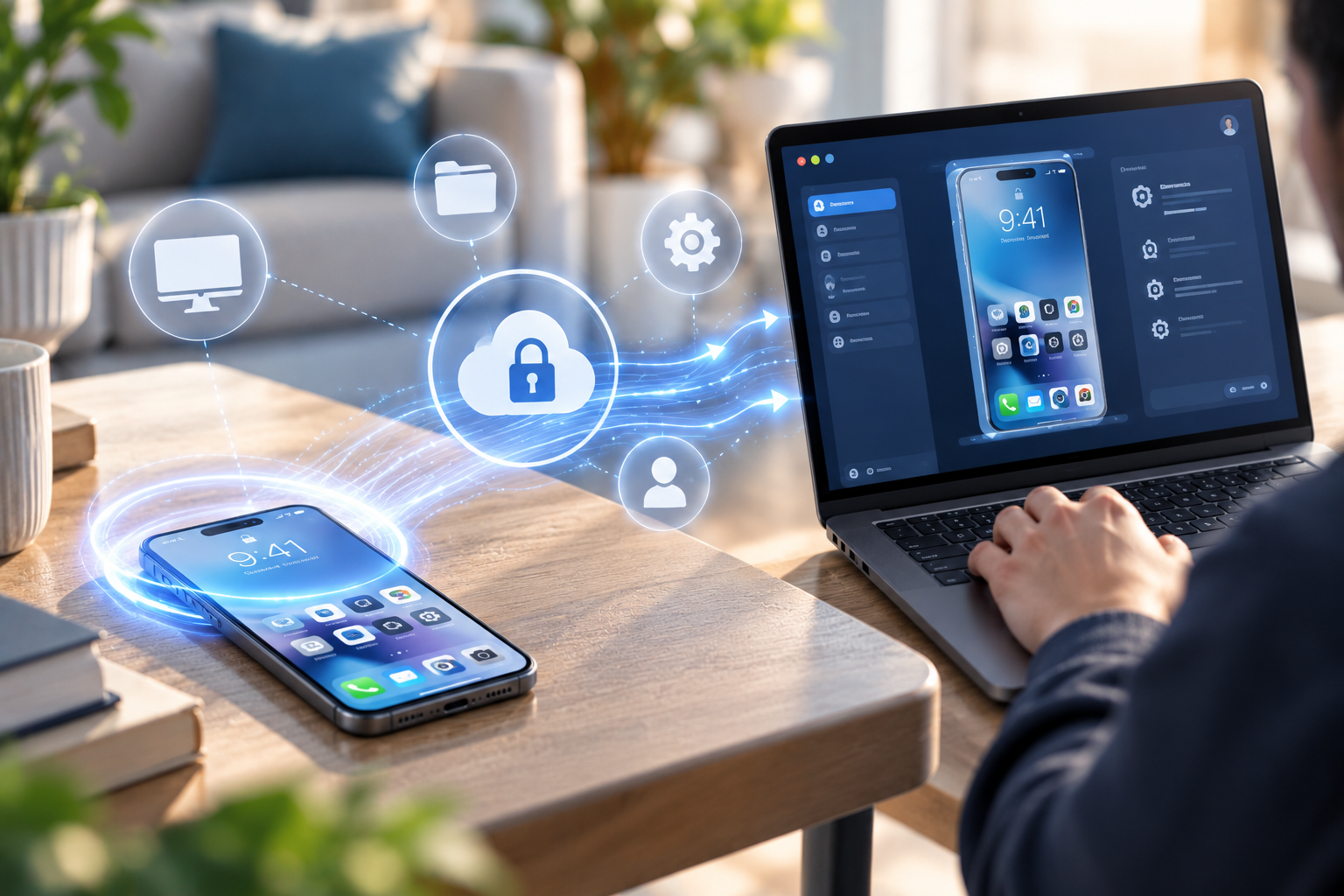
Imagine ordering a phone-unlocking service and receiving an unexpected instruction: install remote-desktop software on your computer and allow a technician to connect. Is that a normal part of the process, or should you be concerned?
The answer depends on the specific service. Remote access phone unlocking can involve legitimate technical assistance in certain specialized workflows, but ordinary carrier unlocking often requires no remote access to the customer’s computer at all.
That distinction is important.
Remote-support tools can give another person substantial control over a computer. Depending on the permissions granted, the remote operator may be able to view the screen, open files, interact with applications and change settings.
Before allowing that level of access, customers should understand why it is necessary, who will connect and what safeguards are available.
Why Some Technical Services Request Remote Access
Remote-desktop software allows one computer to be controlled or assisted from another location.
It is widely used in business IT support, software troubleshooting and technical maintenance.
A legitimate technician may use remote access to diagnose a complicated software problem without visiting the customer’s location.
In certain device-service workflows, a computer may also be involved in communicating with a smartphone.
For example, specialized software procedures may require a device to connect through USB while an operator guides or performs technical steps.
However, these situations are different from conventional database-based or code-based carrier unlocking.
The existence of legitimate remote support does not mean every unlocking request requires it.
Does Standard Carrier Unlocking Require Remote Desktop Software?
Often, no.
Many carrier-unlocking methods operate through a service request associated with the device’s IMEI, a carrier or manufacturer system, or a network unlock code.
The customer may only need to submit the correct device information and follow completion instructions.
For example, an eligible unlock might involve:
-Identifying the original carrier.
– Submitting the required device information.
– Waiting for processing.
– Following the final activation or code-entry instructions.
None of those steps inherently requires a third party to control the customer’s laptop.
If a provider unexpectedly asks for remote access during such a process, request an explanation.
The provider should be able to identify the exact technical reason.
A vague statement that “all unlocks require remote software” is not sufficient.
What Remote Access Can Potentially Expose
The risks depend on the software, permissions and operating environment.
A remote operator may be able to see or interact with information displayed on the computer.
Personal Files
Documents, photographs and downloaded files may be accessible if the remote session permits file browsing.
This can include sensitive work or personal information.
Browser Sessions
A computer may contain active sessions for email, banking, shopping or cloud services.
Even without knowing passwords, an unauthorized operator could potentially interact with accounts that are already signed in.
Saved Credentials
Some computers store passwords or authentication information in browsers and password managers.
Access to these credentials depends on the software and security configuration, but the potential exposure is serious.
Connected Devices
If a smartphone is connected to the computer, a technician may have access to information or controls exposed by the device-management software being used.
The scope depends on the phone’s security state and the tools involved.
System Changes
Remote-control permissions may allow software installation, configuration changes or file transfers.
That creates risks if the operator is untrusted or the session is not properly supervised.
Legitimate Technical Assistance vs Unnecessary Access
The central question is whether the requested access is proportionate to the task.
A legitimate technical-support arrangement should have a clear purpose.
The provider should explain:
– Which software is required
– Why remote access is necessary
– What actions the technician will perform
– How long the session should last
– Whether the customer can observe the work
– How to disconnect when finished
A trustworthy process should not require customers to surrender unrelated passwords or leave unrestricted access active indefinitely.
Clear Consent Matters
Customers should know what they are authorizing.
A request to share the screen for a specific troubleshooting step is different from granting permanent unattended access.
Likewise, temporary remote assistance is different from installing a background service that automatically reconnects later.
These distinctions should be explained before installation.
Common Warning Signs
Remote-support requests deserve additional scrutiny when they involve unusual behavior.
Examples include:
– An unsolicited call claiming your phone requires urgent unlocking
– Pressure to install software immediately
– Requests for online-banking access
– Demands to disable antivirus protection without a clear technical reason
– Instructions to hide the session from another person
– Requests for one-time authentication codes unrelated to the service
– Refusal to explain the intended technical procedure
None of these behaviors should be accepted simply because the person claims to represent an unlocking company.
A legitimate service provider should be able to verify its identity and explain the workflow.

How to Evaluate a Remote Support Request
Before installing anything, follow a deliberate verification process.
Step 1: Confirm the Provider’s Identity
Navigate to the company’s official website independently.
Use the contact information published there.
Do not rely solely on a telephone number or link contained in an unexpected message.
Ask whether the remote-support request is genuinely associated with your order.
Step 2: Verify the Order
Check that the person requesting access can identify the relevant service through the provider’s legitimate support process.
Avoid sharing unnecessary personal information merely to establish credibility.
Step 3: Ask Why Access Is Required
Request a specific explanation.
Does the process involve specialized device software?
Is the technician troubleshooting an error?
Could the same issue be resolved through written instructions or screen sharing without remote control?
Step 4: Review the Software
Use only the software specified through verified official channels.
Avoid downloading modified installers from unfamiliar file-sharing websites.
Check the permissions requested during installation.
Step 5: Prepare the Computer
Close unrelated applications.
Sign out of sensitive services where practical.
Remove confidential documents from the immediate working environment if they are not needed.
Do not assume that minimizing a window makes its contents inaccessible to someone with broad remote-control permissions.
Step 6: Supervise the Session
Remain present while the technician works.
Ask questions if an action seems unrelated to the stated purpose.
End the session if the operator attempts to access unrelated accounts or files.
Step 7: Disconnect Completely
Afterward, terminate the session and review whether the software permits unattended access.
Disable or remove unnecessary persistent permissions.
Uninstall the tool if it is no longer needed.
Before installing remote-access software, verify the provider’s identity, the reason access is needed and whether a less intrusive method is available.
What to Do if You Granted Access to an Untrusted Party
If you believe someone obtained unauthorized remote access, act promptly.
First, disconnect the computer from the internet or terminate the remote session.
If the remote operator still appears to control the system, disconnecting network access can stop the active connection.
Next, use a separate trusted device to secure important accounts.
Change passwords for accounts that may have been exposed, starting with email and financial services.
Review active sessions and revoke unfamiliar access.
Enable multi-factor authentication where available.
Check Financial Accounts
If the operator accessed banking or payment information, contact the relevant financial institution through its official channels.
Explain what happened and follow its security recommendations.
Inspect the Computer
Review installed applications and remote-access permissions.
Run reputable security checks.
If sensitive information or administrative access may have been compromised, professional technical assistance may be appropriate.
In serious cases, restoring the computer from a trusted backup after a clean operating-system installation may be the safest approach.
Protect the Phone Too
If the smartphone was connected during the session, review any changes made to it.
Check for unfamiliar applications, configuration profiles or management settings.
The appropriate response depends on the operating system and the type of access granted.
Remote Access Is Not the Same as Remote Unlocking
The terminology itself creates confusion.
A remote unlock may simply mean that the service can process the carrier restriction without physically receiving the phone.
That does not necessarily involve remote desktop access.
For example, a database-based unlock can be performed remotely from the provider’s side while the customer continues using the device normally.
By contrast, remote-desktop support involves direct interaction with the customer’s computer.
Consumers should ask which meaning applies.
A provider advertising “remote unlocking” should not be assumed to require unrestricted access to personal files.
Can Remote Support Be Made Safer?
Yes, although no arrangement is completely risk-free.
A dedicated computer with minimal personal information can reduce exposure.
Temporary access codes are preferable to permanent credentials.
Customer-supervised sessions provide greater transparency.
Restricting permissions to the minimum necessary can also help.
For businesses, remote assistance should follow formal IT policies, especially when computers contain confidential customer or corporate information.
Employees should not grant third-party access to company-managed devices without authorization.
Why Clear Instructions Matter
Most consumers are not security specialists.
They should not need advanced technical knowledge to understand what an unlocking provider wants them to do.
Clear service instructions should explain the actual procedure, required software and expected customer involvement.
When a service requires unusual access, that requirement should be visible before the customer commits whenever possible.
The same principle applies to support.
A customer should be able to ask why a particular action is necessary and receive an understandable answer.
Transparency reduces both confusion and security risk.
Conclusion: Verify Before You Grant Control
Remote access phone unlocking should never be treated as a routine requirement without explanation.
Many legitimate carrier-unlocking methods do not require remote-desktop software.
Some specialized technical services may involve remote assistance, but the need for access should be specific, justified and clearly communicated.
Before allowing a connection, verify the provider, understand the procedure, review permissions and consider whether a less intrusive alternative exists.
If you suspect an untrusted party has accessed your computer, disconnect the session and secure potentially exposed accounts promptly.
Unlocking.com encourages customers to understand the instructions and requirements of their selected unlocking service before proceeding, helping users make informed decisions about both device flexibility and personal security.
Get the feed

Recent Posts
- Remote Access During Phone Unlocking: When Should You Be Concerned?
- Paid Off Your Phone Early? How to Handle Carrier Unlocking Before Your Contract Ends
- Unlock Delay Beyond 60 Days—What to Do?
- Unlock Checks: How to Verify Your Phone Is Truly Unlocked
- Comparing Unlocking Services: Why Cheaper Isn’t Always Better
- Unlocking Refurbished Phone: Key Considerations
- Unlock After Market Upgrades (Battery, Display)—What to Expect
Unlocking Feed
Deandra F just ordered a Apple iPhone 16 Pro unlock code.
2 hours ago
Melodie F just ordered a Apple iPhone 13 unlock code.
9 hours ago
Dorine I just ordered a Doro 5030 unlock code.
9 hours ago
Comments